

 Sign In

Archive
All PostsJuly 2026June 2026May 2026February 2026January 2026December 2025October 2025September 2025July 2025October 2024June 2024February 2024January 2024November 2023October 2023August 2023April 2023March 2023February 2023January 2023December 2022July 2022May 2022March 2022December 2021November 2021October 2021September 2021August 2021July 2021June 2021May 2021April 2021March 2021February 2021January 2021December 2020November 2020October 2020July 2020May 2020April 2020March 2020February 2020January 2020October 2019September 2019July 2019March 2019February 2019October 2018September 2018August 2018July 2018June 2018March 2018February 2018January 2018December 2017November 2017July 2017June 2017April 2017February 2017January 2017August 2016June 2016February 2016November 2015October 2015September 2015July 2015June 2015January 2015November 2014October 2014September 2014August 2014July 2014June 2014May 2014April 2014February 2014January 2014October 2013September 2013July 2013February 2013October 2012September 2012May 2012January 2012November 2011July 2011February 2011January 2011December 2010October 2010April 2010February 2010January 2010December 2009September 2009February 2009July 2008July 2007April 2007April 2006March 2006November 2005May 2005October 2004August 2004June 2004May 2004April 2004March 2004December 2003May 2002November 2000How to Calibrate your Evolis Primacy 1 Sensors
If your Primacy 1 card printer is not properly recognizing your cards, you need to calibrate the printer sensors.Open the Evolis Print Center
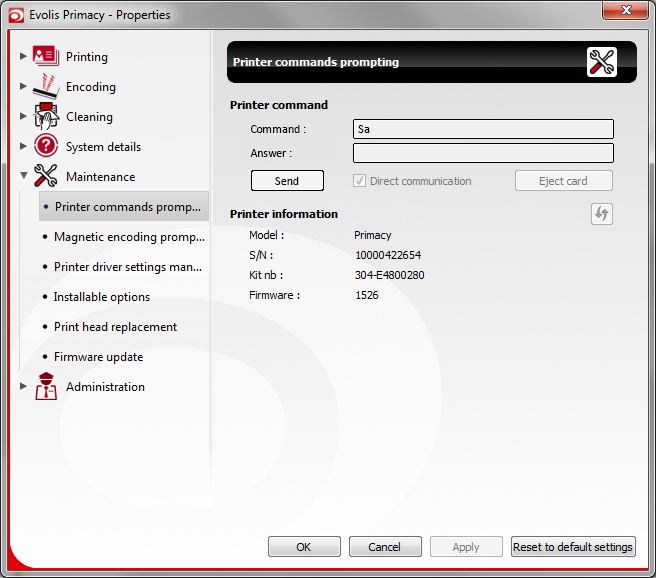
Double-click on your printer and click Maintenance.
Enter the command Sa (case-sensitive S capital, lowercase a, no spaces) to adjust all the sensors in the same process. Ensure a color ribbon is inside the printer, and remove all the cards in the hopper. When ready, click Send.
- The "warning-LED" from the control panel will start flashing.
- Open the cover. The "warning LED" will stop. When it's on again, close the cover.
- The "card/ribbon-LED" will flash. Insert a card in the feeder
- The card will be inserted, ejected then the sensors will be adjusted.
It's done. Your printer sensors should now be calibrated and working properly.
Tag: calibrate,evolis primacy 1,evolis zenius 1
Customer Favorites