



 Sign In


Lang: en | Section: blog | Slug: how-to-get-the-driver-and-firmware-version-zebra-zc100-zc300-zc350 | Action: | Cart: 0 | Currency: USD | Err Code: none | MSG: checksum created.
Signed In: S-No | checksum: C-No | apt_id: S-none | cart key: S-none | pli_key: S-none
Signed In: S-No | checksum: C-No | apt_id: S-none | cart key: S-none | pli_key: S-none
Archive
All PostsOctober 2024June 2024February 2024January 2024November 2023October 2023August 2023April 2023March 2023February 2023January 2023December 2022July 2022May 2022December 2021November 2021October 2021September 2021August 2021July 2021June 2021May 2021April 2021March 2021February 2021January 2021December 2020November 2020October 2020July 2020May 2020April 2020March 2020February 2020January 2020October 2019September 2019July 2019March 2019February 2019October 2018September 2018August 2018July 2018June 2018March 2018February 2018January 2018December 2017November 2017July 2017June 2017April 2017February 2017January 2017August 2016June 2016February 2016November 2015October 2015September 2015July 2015June 2015January 2015November 2014October 2014September 2014August 2014July 2014June 2014May 2014April 2014February 2014January 2014October 2013September 2013July 2013February 2013October 2012September 2012May 2012January 2012November 2011July 2011February 2011January 2011December 2010October 2010April 2010February 2010January 2010December 2009September 2009February 2009July 2008July 2007April 2007April 2006March 2006November 2005May 2005October 2004August 2004June 2004May 2004April 2004March 2004December 2003May 2002November 2000How to get the Driver and Firmware version on a Zebra ZC100, ZC300, or ZC350
When asking for support, you might be asked for the serial number, driver and firmware version of your Zebra ZC Series printer (ZC100, ZC300, or ZC350). This article will show you how to get it using the driver's information.How to get the Driver and Firmware version
- Select Start > Settings > Bluetooth & devices > Printers & scanners
- Click on the Zebra ZC Series printer.
- Click Printing Preferences from the list and you will get this window.
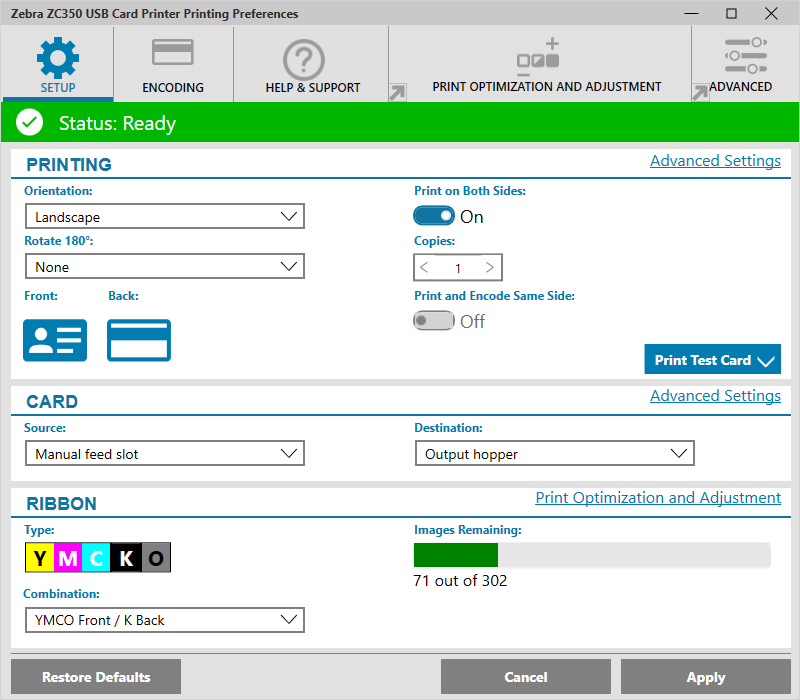
- Click Advanced Settings.
- Click Information, now you should see this window.

- The Information tab shows the printer's current state, the driver's current version, the printer's serial number, the currently installed firmware version, the interface type, and the total number of cards printed.
- The Ribbon section of the Information tab shows the current ribbon type installed in the printer, the selected panel combination, and the number of images remaining on the current ribbon cartridge.
- The Options section of the Information tab shows the available options and their respective installed status.
- Make a screenshot of your screen by pressing Ctrl + PrtScn or the Windows logo key + Shift + S to open Snipping Tool. Then paste the screenshot by pressing Ctrl - V into your email for support.
Tag: zebra, zc series, firmware, serial number, driver
Customer Favorites
$2,998.00You save 33.46%$1,995.00